Quick Start
transformable.app quick start guide on how to get your first server deployed and install some self hosted apps.
- Get a Laravel Forge API Key & Register
- Deploy a server with transformable.app
- Install apps with transformable.app
- Keep your profile updated
Get a Laravel Forge API Key & Register
How to Get Started
- Sign up for a Laravel Forge account
- Generate your Forge API key in your Forge dashboard
- Use your API key to register with Transformable.app
- Add your Server Providers and their credentials to Forge. DigitalOcean is the simplest cloud provider to add on Forge.
- Deploy servers and apps quickly!
Transformable.app Video Introduction
Watch this screencast introducing transformable.app by showing a server deployment along with some app installs.
Deploy a server with transformable.app
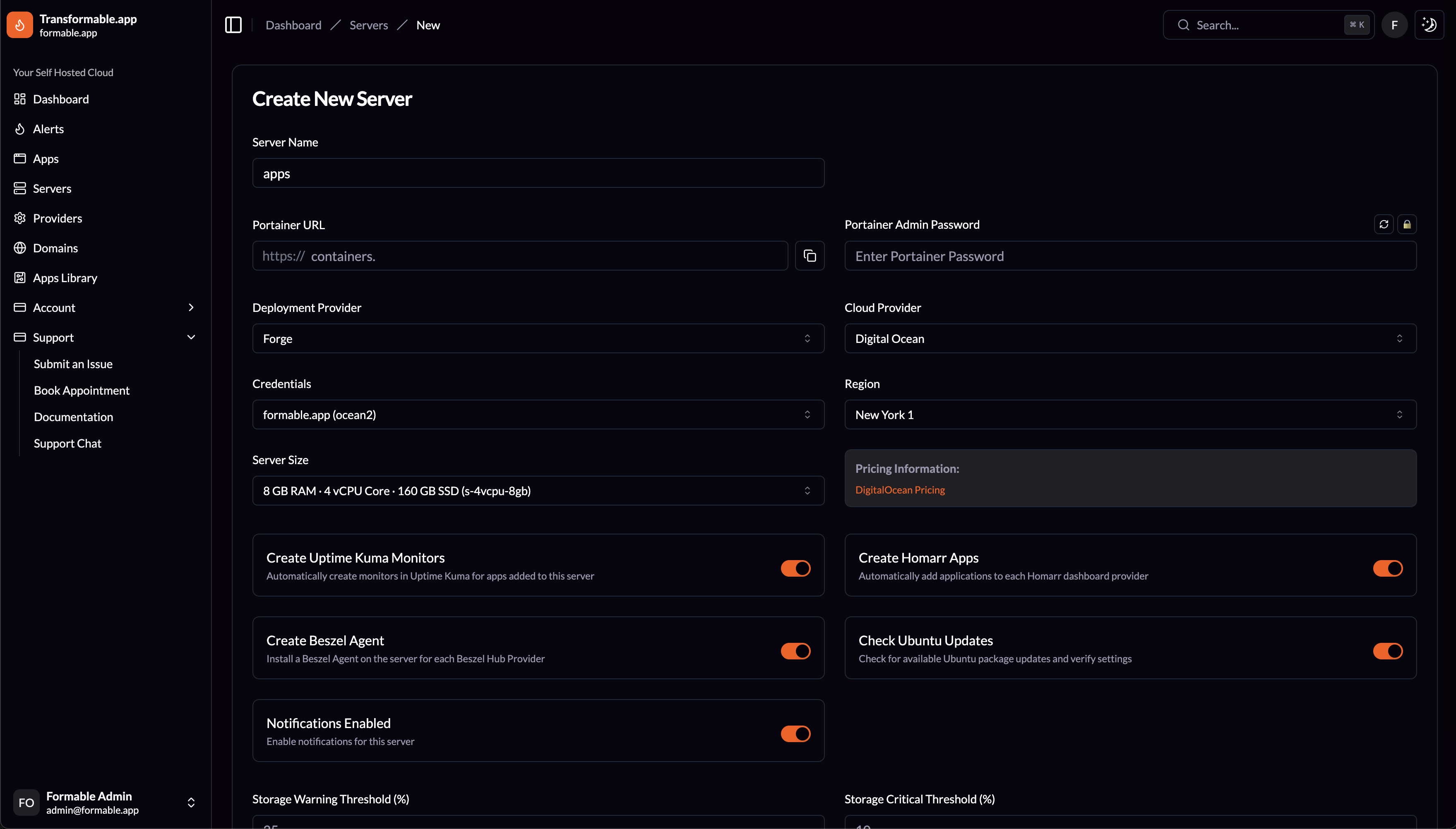
Create a New Server
Creating a new server will deploy a server on Laravel Forge based on the Deployment Provider you select. Credentials are retrieved from Forge for every Cloud Provider so you can select from all the available Regions and Server Sizes.
A Server Name and Portainer URL along with a Portainer Admin Password are required. These are used during Portainer setup to create a site and configure your Portainer installation.
The following options are available for each server:
Create Uptime Kuma Monitors
Automatically create monitors in Uptime Kuma for apps added to this server.
Create Beszel Agent
Install a Beszel Agent on the server for each Beszel Hub Provider. We run hub.formable.app for all transformable.app users.
Create Homarr Apps
Automatically add applications to each Homarr dashboard provider.
Check Ubuntu Updates
Check for available Ubuntu package updates and verify settings.
Notifications Enabled
Enable email notifications for this server.
Storage Warning Threshold (%)
Defaults to 25% free disk space. Email notification will be sent when threshold is reached.
Storage Critical Threshold (%)
Defaults to 10% free disk space. Email notification will be sent when threshold is reached.
Ubuntu Version
Choose between Ubuntu 24.04 or 22.04.
PHP Version
Choose a PHP 8 version.
Database Type
Choose what database type to setup by default. MySQL, MariaDB or PostgreSQL.
Quick Ubuntu rootless Docker Server Deployment
When you complete the form and click Create Server transformable.app immediately starts a server deployment with Laravel Forge on the hosting provider you selected.
Once the server is deployed you will be prompted to setup a wildcard DNS entry for any custom domain name you own. For example *.formable.app is setup for formable.app to handle any subdomains added for apps.
Transformable.app will detect the DNS update automatically and proceed to finishing the rootless Docker and then Portainer setup on the server.
Portainer is setup with an API key so transformable.app has immediate access to install apps on the server. You can also login to Portainer when the server setup finishes.
Install apps with transformable.app
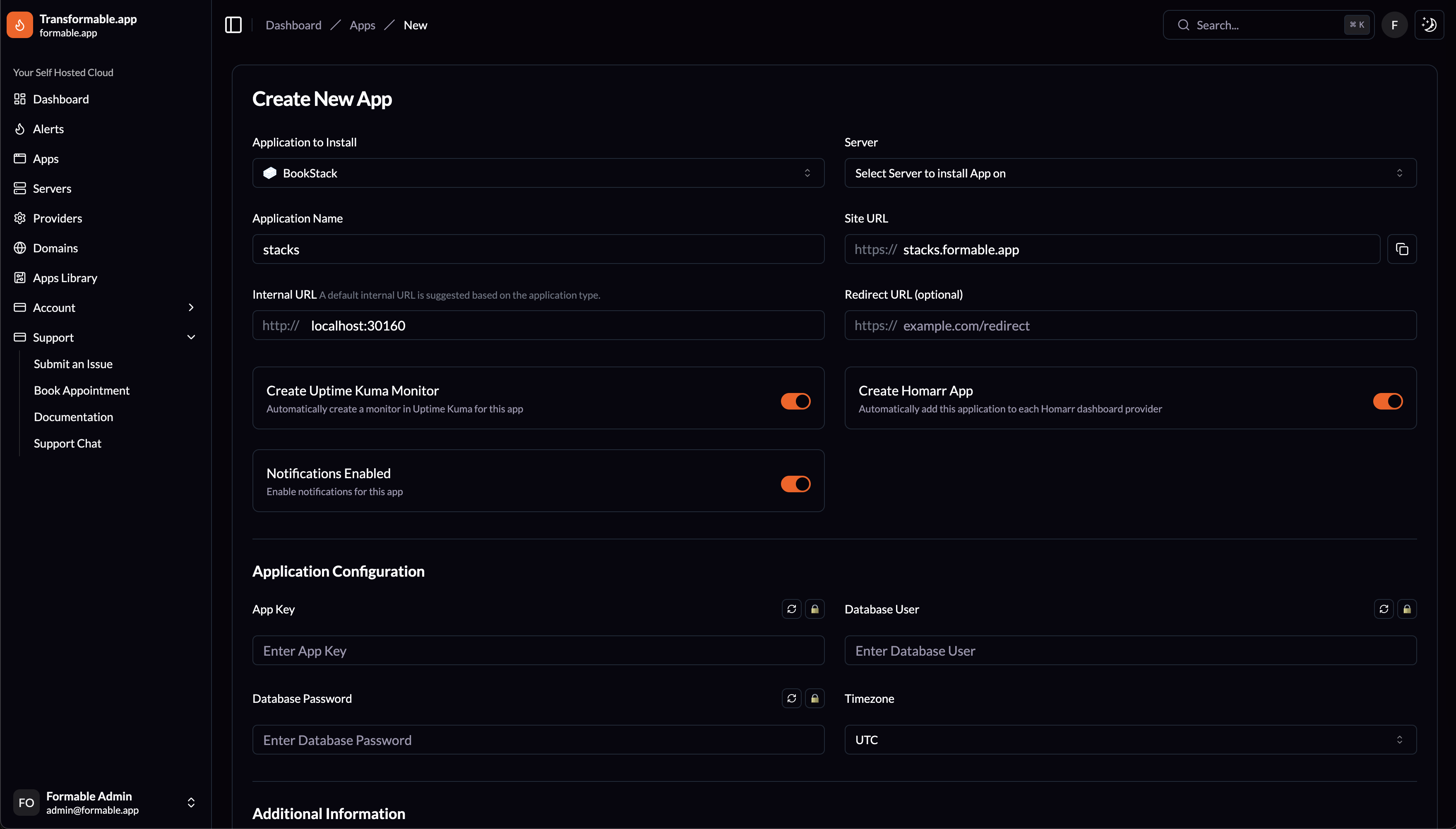
Create a New App
Creating a new app on transformable.app creates a Portainer Stack on the Server you select. You can choose from any app in the transformable.app Apps Library. Application Configuration fields are available for each application so you can quickly configure required environment variables for the stack.
Application Name & Site URL
Fill in an Application Name to name your Portainer Stack. Site URL is also required so transformable.app can deploy a site on Forge and activates a Let's Encrypt SSL certificate for it.
Application Internal URL & Port
The Internal URL is auto-assigned a port based on the application you select. The port can be updated if installing multiple copies of apps.
Redirect URL
Redirect URL is optional and will setup Nginx to redirect to the redirect URL instead of loading an app. Select Proxy to setup just a redirect.
The followings options are available for each app:
Create Uptime Kuma Monitor
Automatically create a monitor in Uptime Kuma for this app.
Create Homarr App
Automatically add this application to each Homarr dashboard provider.
Notifications Enabled
Enable email notifications for this app.
Additional Information
Notes can be added for the transformable.app team if you need us to help with app configuration or have any questions.
Keep your profile updated
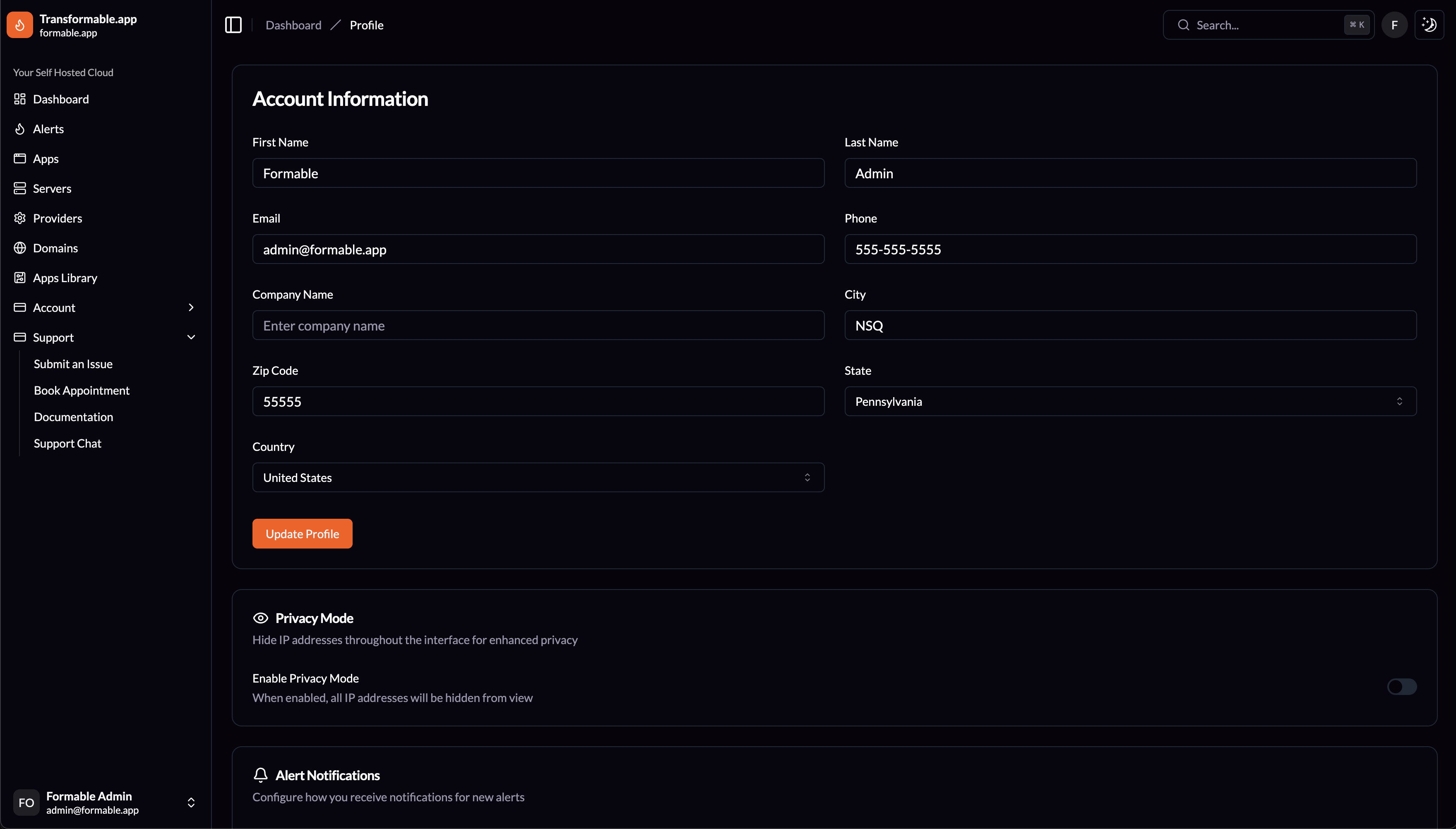
Account Information
It's easy to keep your account and contact information updated. Also if you set a Company Name, the interface will show your company name next to the logo in the top bar.
We rely on your Email for notifications and billing, please keep it current.
Privacy Mode
Enable privacy mode to hide all IP addresses in the system from view.
Alert Notifications
Choose how you receive notifications for new alerts in the app. Enable Browser notifications or use the built-in toast notifications instead.
- Toast Notifications: Show temporary messages in the app.
- Browser Notifications: Show system notifications even when the app is closed.
Clear Stored Data
Clear local stored data including alert notifications, table sorting, and pagination preferences. This will reset all stored UI preferences and allow you to receive notifications for previously seen alerts.