Servers
transformable.app servers details
Servers List
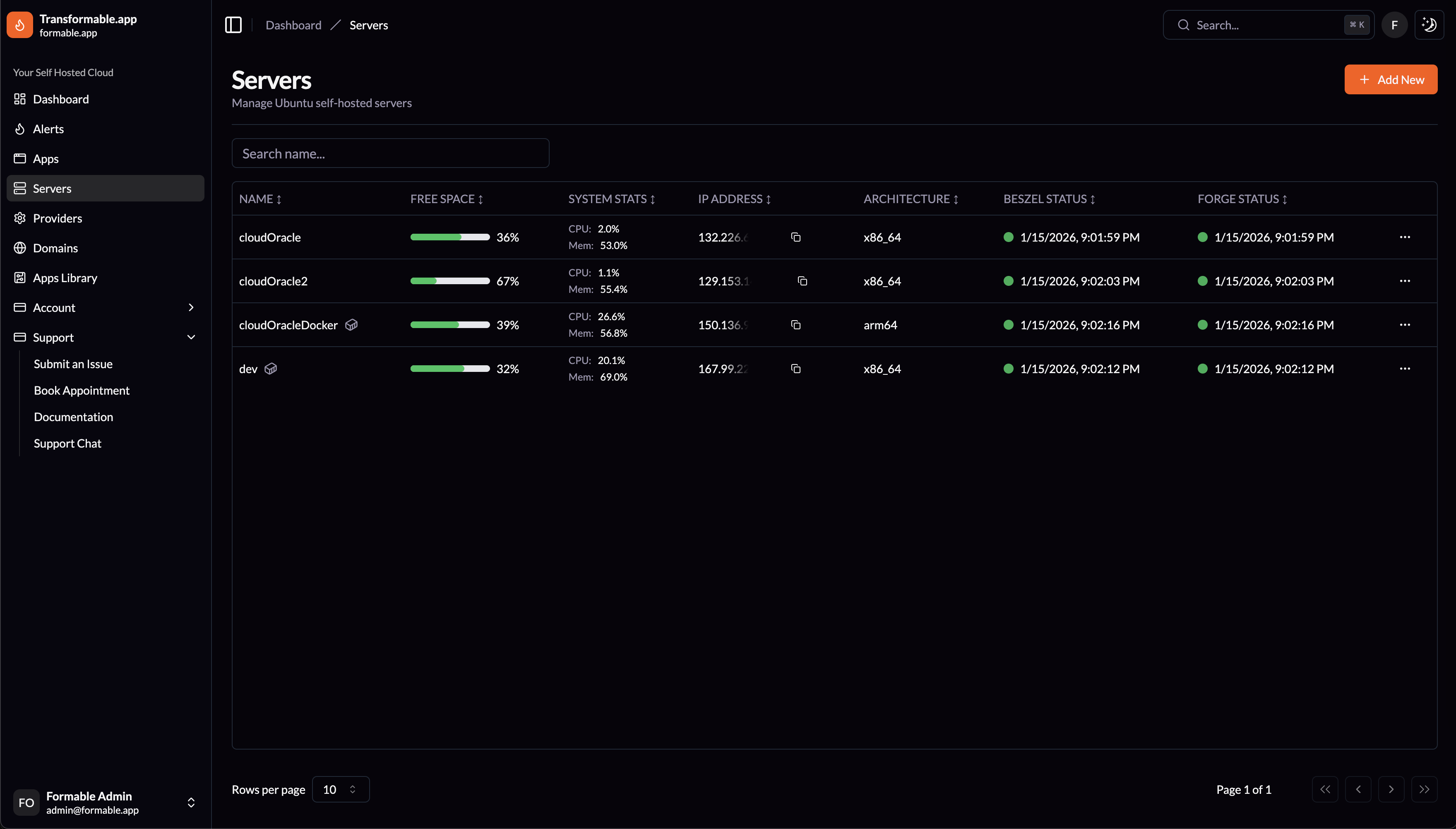
Servers
Manage Ubuntu self-hosted servers. Search for any server by name or IP Address or click Add New to create a new server.
The servers list allows you to quickly review Free Space on your servers along with System Stats thanks to the Beszel integration. All columns are sortable, and you can copy any server IP Address easily.
Edit
Edit all the Portainer integration information for each server, Portainer URL, key and admin password. Update notification thresholds for each server. Nginx Max Upload Size and Max Execution Time can also be changed, along with the server's default Timezone. Set Check Ubuntu Updates and Notifications Enabled for each server.
Updates Report
An Ubuntu Server Updates status and configuration checks report can be reviewed for each server.
Check Updates
Run a job on transformable.app to check the updates information for a specific server. Also runs daily for each server on transformable.app.
Restart
Restart the server.
Stop / Start
Stop or start the server, option changes based on server status.
Open in Beszel
Open server status details page in Beszel. If you have a Beszel Hub integration or user login on the Formable Beszel Hub (hub.formable.app).
Request Support
Request server support from the transformable.app team.
Server Notifications and Resolution
If notifications are enabled for the server transformable.app will email you if there are any connection issues with the server or Portainer or if the free disk space reaches your preset thresholds. These are our immediate concerns in terms of server uptime. The transformable.app team also receives direct notifications from the Formable Beszel Hub for all the Server Stats by email and in a NTFY channel so we can advise on any performance changes and take action if approved by you.
Deploy a New Server
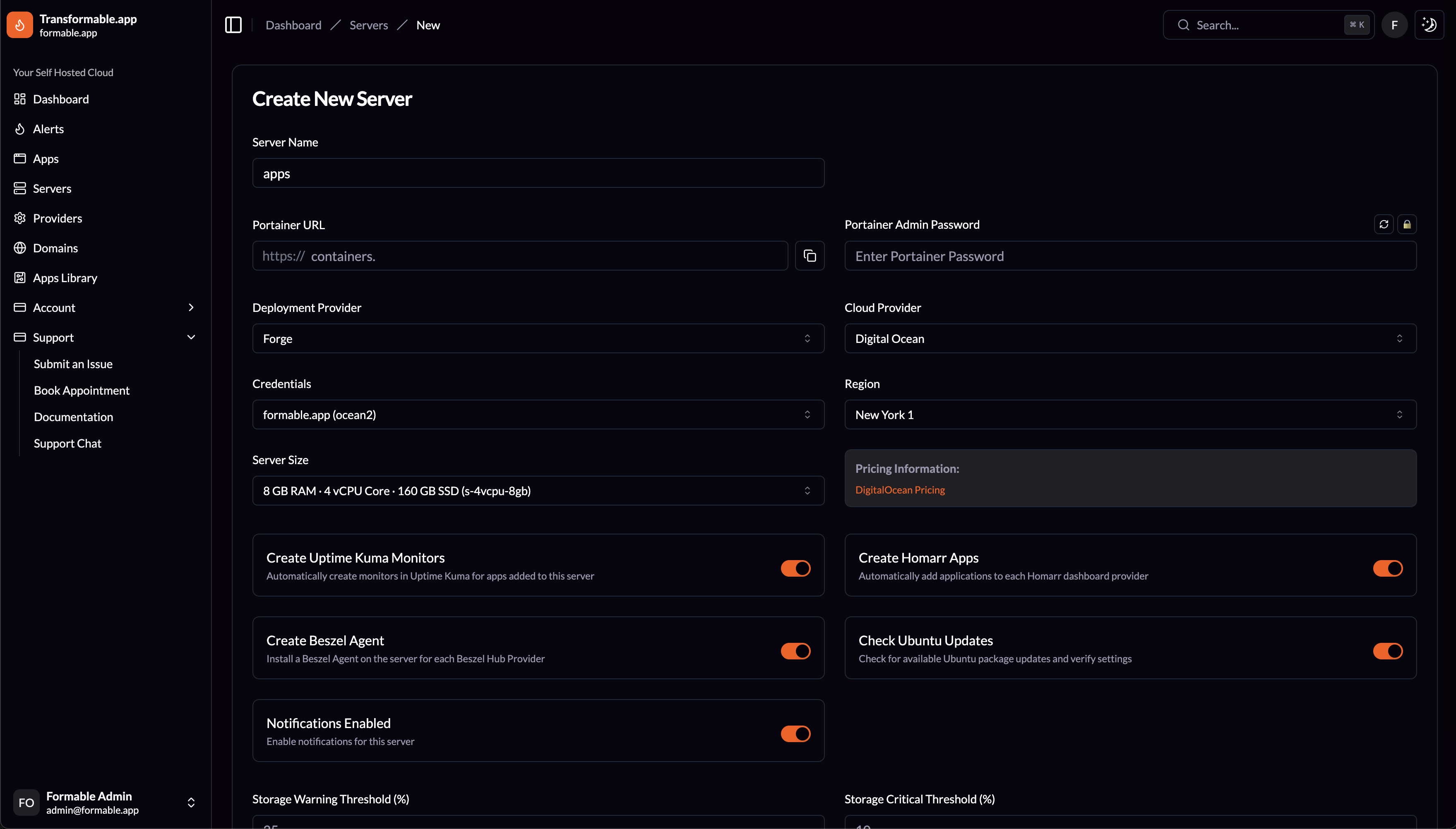
Creating a new server will deploy a server on Laravel Forge based on the Deployment Provider you select. Credentials are retrieved from Forge for every Cloud Provider so you can select from all the available Regions and Server Sizes.
A Server Name and Portainer URL along with a Portainer Admin Password are required. These are used during Portainer setup to create a site and configure your Portainer installation.
The following options are available for each server:
Create Uptime Kuma Monitors
Automatically create monitors in Uptime Kuma for apps added to this server.
Create Beszel Agent
Install a Beszel Agent on the server for each Beszel Hub Provider. We run hub.formable.app for all transformable.app users.
Create Homarr Apps
Automatically add applications to each Homarr dashboard provider.
Check Ubuntu Updates
Check for available Ubuntu package updates and verify settings.
Notifications Enabled
Enable email notifications for this server.
Storage Warning Threshold (%)
Defaults to 25% free disk space. Email notification will be sent when threshold is reached.
Storage Critical Threshold (%)
Defaults to 10% free disk space. Email notification will be sent when threshold is reached.
Ubuntu Version
Choose between Ubuntu 24.04 or 22.04.
PHP Version
Choose a PHP 8 version.
Database Type
Choose what database type to setup by default. MySQL, MariaDB or PostgreSQL.
Quick Ubuntu rootless Docker Server Deployment
When you complete the form and click Create Server transformable.app immediately starts a server deployment with Laravel Forge on the hosting provider you selected.
Once the server is deployed you will be prompted to setup a wildcard DNS entry for any custom domain name you own. For example *.formable.app is setup for formable.app to handle any subdomains added for apps.
Transformable.app will detect the DNS update automatically and proceed to finishing the rootless Docker and then Portainer setup on the server.
Portainer is setup with an API key so transformable.app has immediate access to install apps on the server. You can also login to Portainer when the server setup finishes.