
Deploy an App
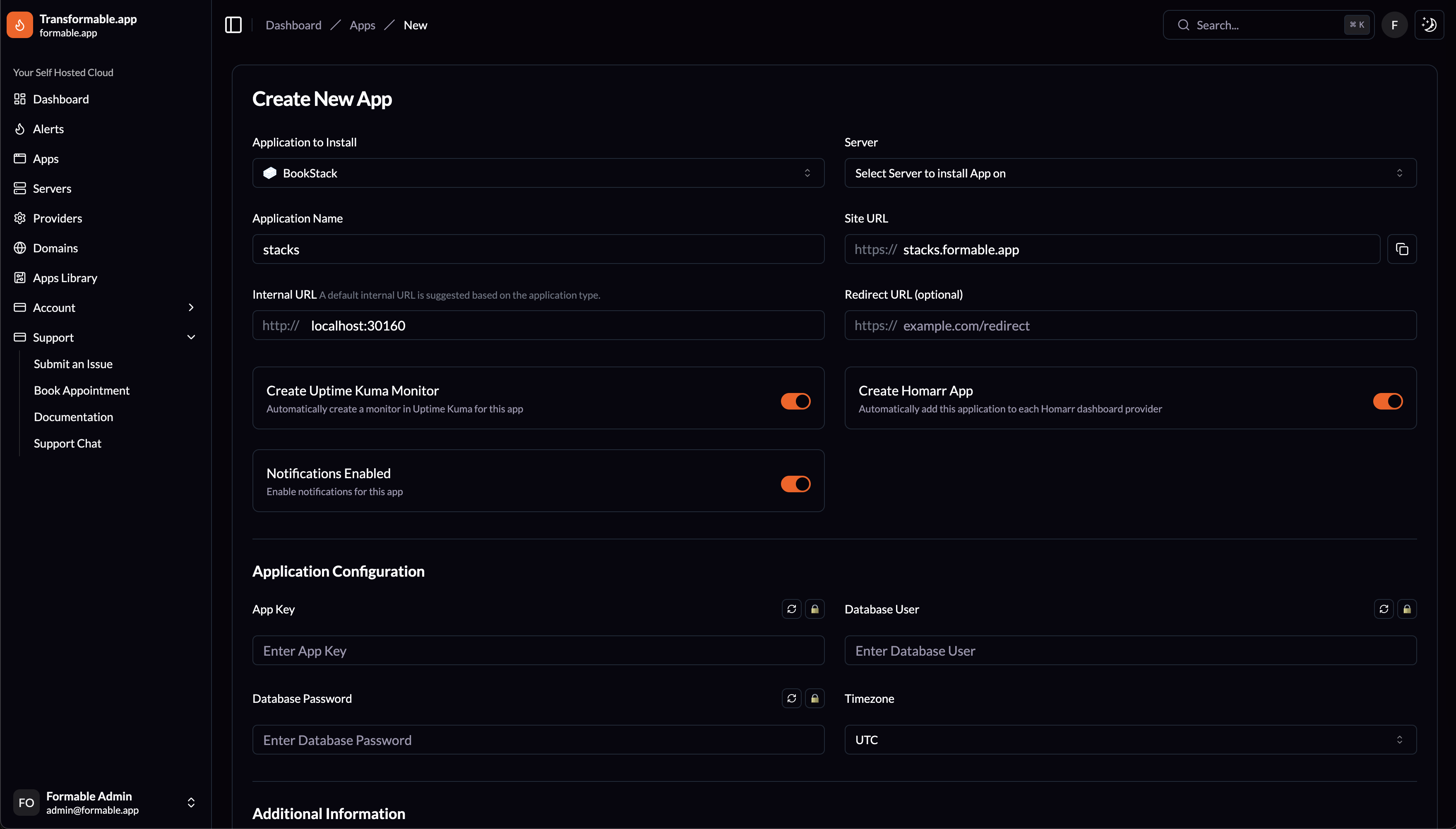
Create a New App
When an app is created a new Portainer stack is deployed on the server you selected with the latest docker compose from our Apps Library. Using the Forge API a site is also created for the app in Nginx and a Let's Encrypt SSL certificate is activated for the site.
The following fields are required when creating a new app.
Application to Install
To create a new app you first select the application to install from the Apps Library or in the dropdown on this page.
Server
Select what server to deploy this application to. The server must have a Portainer URL and API Key configured to appear in this dropdown.
Application Name
The Portainer stack will be created with this name.
Site URL
The Site URL for the application you are installing. Usually this is a subdomain like ex: https://myapp.formable.app
Internal URL
The default is assigned for you based on the default port this Portainer stack runs on, ex: http://localhost:30000
These fields are optional:
Redirect URL
If a Redirect URL is configured the Nginx proxy will redirect to this URL instead of proxying the Internal URL.
Create Uptime Kuma Monitor
If enabled an Uptime Kuma Monitor is created for every Uptime Kuma Provider configured for the user.
Create Homarr App
If enabled a Homarr App is created in Homarr with an icon and link so it's easy to manage custom dashboards.
Notifications Enabled
If enabled notifications will be sent for this app.
Application Configuration
App configuration fields are populated dynamically based on the Application to Install selection.
Additional Information
Adding a note will create a pinned note for this app and email a copy to the support team.
Once you click Add App transformable.app deploys the app and emails the link you when it's done. Status is also shown on screen.
No comments to display
No comments to display